Bulk Image Downloader
Download Images from Websites
Image Downloader
- Comes absolutely free with ScrapeBox
- Has multiple connections happening at the same time
- Can resize the images you download
- Can convert images to different file types
- You can choose which image types you want to download
- Keeps images from different domains in their own folders
- Allows you to filter images by size
- Supports downloading images from multiple websites at once
- Uses a fast connection to download your images quickly
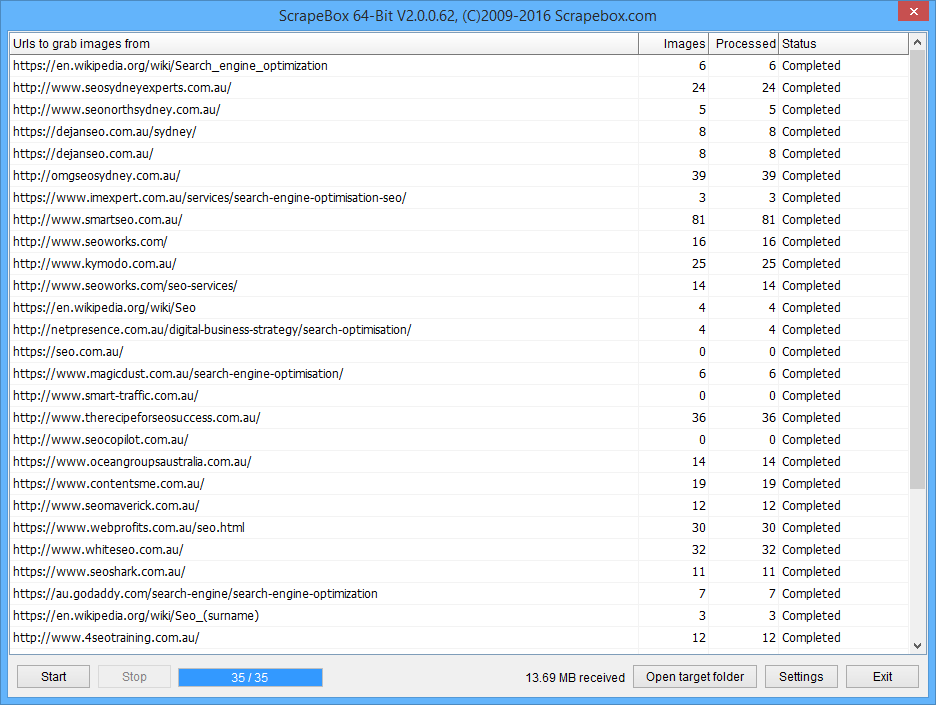
Need a super fast and easy way to download all the images from a website or a whole list of URLs? ScrapeBox’s got you covered.
The built in bulk image downloader is a real work horse – it can take a list of URLs, from the same or totally different websites, and go out and grab all the images from each page. So if a website has a big gallery or a page full of images you can get them all onto your PC.
This doesn’t involve using a web browser so its blazingly fast and can even download multiple images at the same time – in fact you can download from up to 200 different websites or pages all at once.
ScrapeBox also has a Google Images Downloader if you want to grab images from google images rather than websites. Plus you can use loads of other ScrapeBox features like the Search Engine Scraper or Sitemap Scraper to get lists of web pages that you want to grab images from.
Downloader Settings
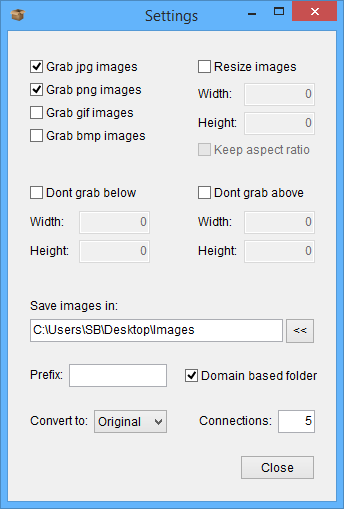
The Bulk Image Downloader has loads of options to let you customise the image downloads.
You can pick and choose which image file types you want to grab, so for example you might just want to download .jpgs from a gallery that’s full of .jpgs. Or you could choose to download all the different file types like .jpg, .png, .gif and .bmp.
You can also get the image downloader to resize the images for you, which is really handy if you have a gallery that’s full of big images and you want to grab them and resize them into smaller thumbnails while you download them. You can just specify the new size and whether you want to keep the image in the same aspect ratio and off they go.
If you’re looking to download images of a specific size you can also do that – you can set the minimum and maximum size you want to download. So if a website has the same image in a few different sizes you can set the min and max sizes to grab only the specific size you want.
You can also use the image downloader to convert the file type of the image – so if a webpage has an image in .png format and you want it in .jpg you can get the image downloader to change it for you.
Also when you’re downloading images from lots of different domains at the same time you can have the downloader save the images into their own folders, based on the website they came from. So you can easily see where each image came from.
Downloaded Images
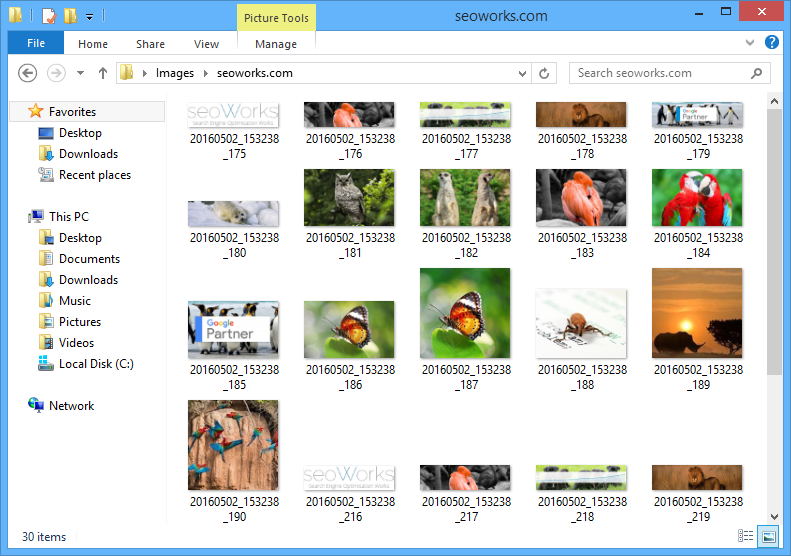
Every time you use the downloader the images are saved onto your PC, ready for you to use offline or in your next project. The images will be saved in the file type you chose and in domain based subfolders if you wanted that.
You can also add a prefix to the filename of each image – for example if you resize an image and save it as a thumbnail you can add a “thumbnail-” prefix so every image has a unique name.